
Notification Configuration
Under this section, administrators can control the notifications received when triggered by the application.
Navigate to the Notification Configuration page via the top nav bar under Site > Admin > Configuration > Notifications.
Login Notifications
Notify users upon login about important information or reminders, i.e. End of Quarter reporting deadlines. These notifications can be configured to reach all or specific user groups based on the target audience of the notification.
Notification Dates
Users can view the full list of all notification dates entered and control how early a user should be notified (in number of days) when a specified date field is populated.
To add a new date, click Add Date, select an applicable Action and Date from the dropdown, then enter number of days either prior or after when the notification is to be sent.
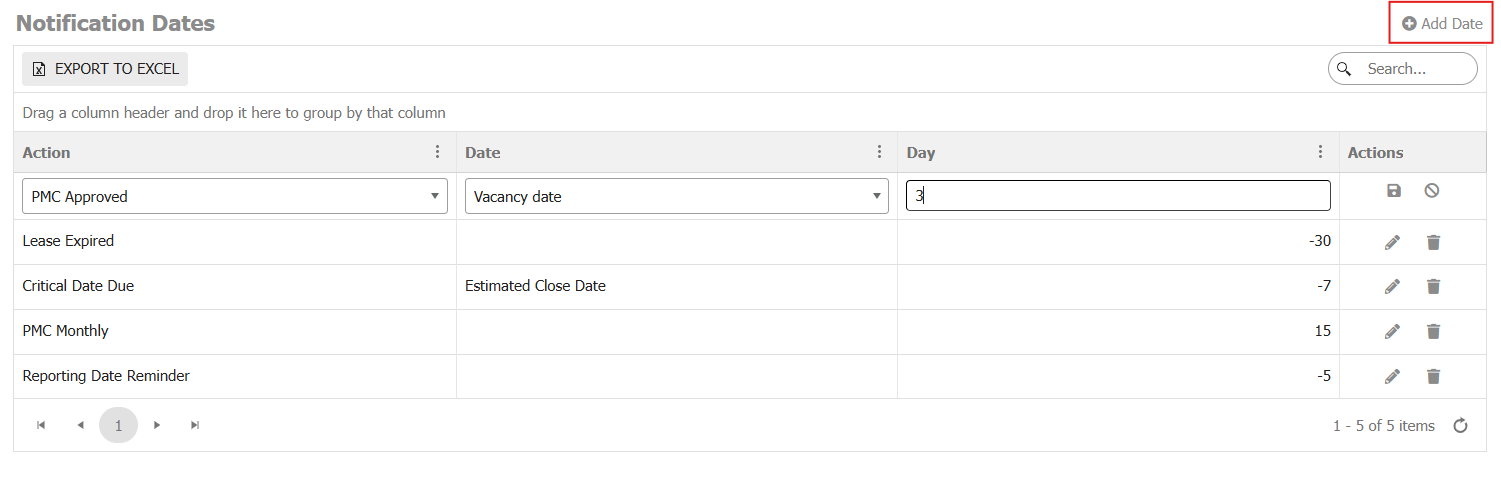
Standard predefined options for Action include:
|
-Role Assigned |
-PMC Monthly |
-PMC Approved |
|
-Lease Expired |
-PMC Uploaded |
-PMC Rejected |
|
-Critical Date Due |
-PMC Submitted |
|
Standard predefined options for Date include:
|
-Estimated Close Date |
-Actual Close Date |
-End of Inspection Date |
|
-PIC Approved Date |
-PIC Scheduled Date |
-Survey Delivery Date |
|
-FIC Scheduled Date |
-FIC Approved Date |
-Hard Money |
|
-Actual Development Start Date |
-Actual Development End Date |
-Purchase & Sale Exe Date |
|
-Planned Development Start Date |
-Planned Development End Date |
-Due Diligence Visit Date |
|
-Client / Board Approval Date |
-Non-Refundable EMD Date |
-Title Commitment Delivery Date |
|
-Projected Dispo Date |
-Screening Committee Date |
-Screening Approval Date |
Click the icons in the Actions column to either edit or delete.
Notification Roles
Under Notification Roles, users can view and assign actions by specific Role. Click Add Role, select an applicable Action (ex., when a Role is assigned to a user), and the applicable Type for the user (ex., Asset Manager). Click the icons in the Actions column to either edit or delete.
Notification Messages
This section allows users to view all messages relating to notifications, with the flexibility to customize as needed. Click Add Message to add a new message, then select the applicable Action from the dropdown.
Standard predefined options for Type include:
|
-Portfolio |
-Disposition |
-Fund |
|
-Acquisition |
-Development |
-Variance |
|
-Asset |
-Financing |
|
For the Method, this will be either email or within the Application Notification Area.
And the Text column corresponds to the message to be displayed as part of the notification. For further support and technical expertise in configuring custom notifications, contact Pereview Support.