
Using the Document Configuration tool, customize how you categorize files that are uploaded to various system objects in Pereview (Asset, Transaction, Loans, etc.). Using these associations, quickly sort and filter your files in Pereview to see all files of a certain type or find a specific file you are looking for.
To configure navigate to Site > Admin > Documents. From here you can view all previously created document types as well as create new document categories.
To create a new document category, select the Add Category button in the top right. Give the category a name and click the Save icon on the right.
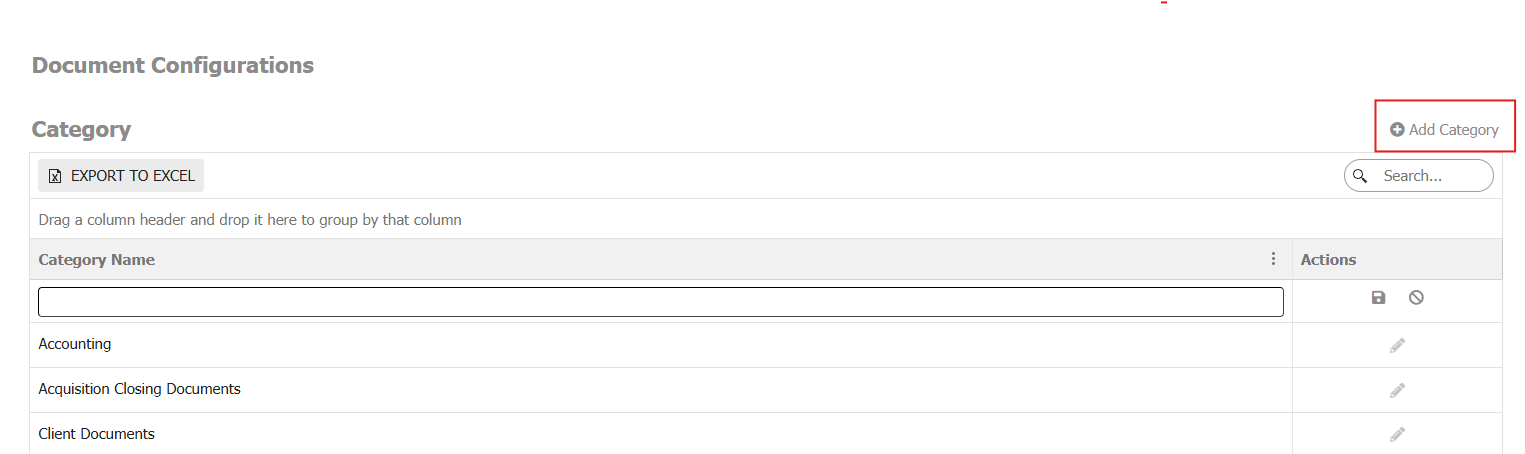
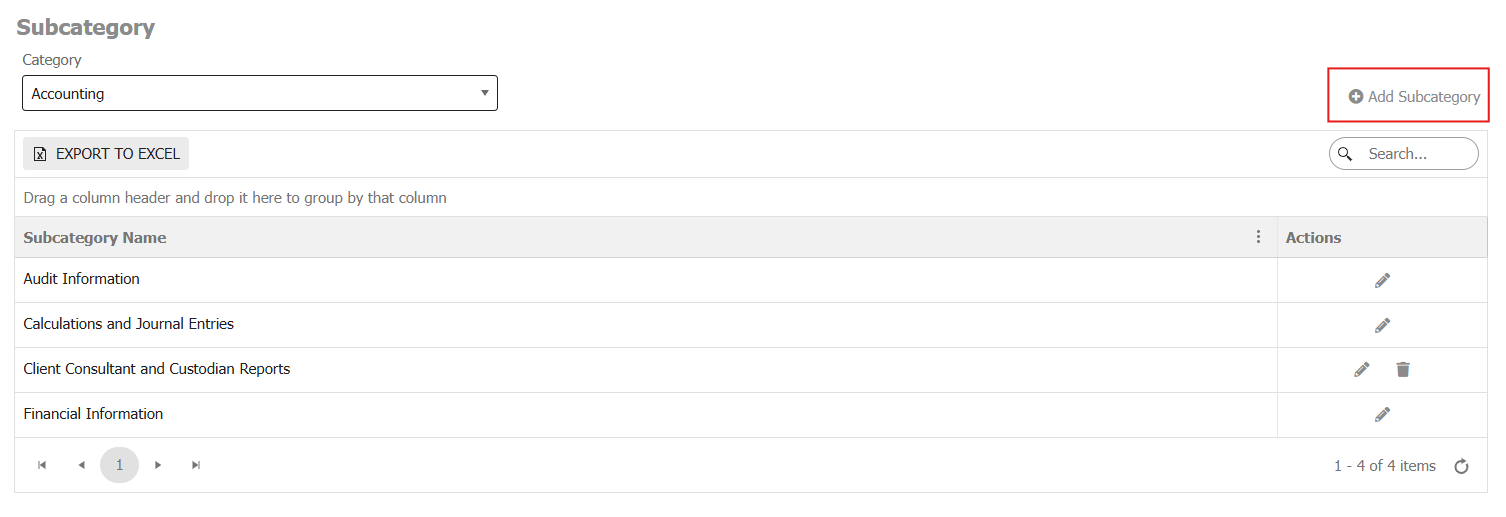
Once a category has been created, a further subcategory can be associated with that category by scrolling down to the subcategory grid further down the page and then selecting the category in question from the dropdown menu.
Once the category is selected in the subcategory menu, use the Add Subcategory button on the right to create subcategories for that specific category.
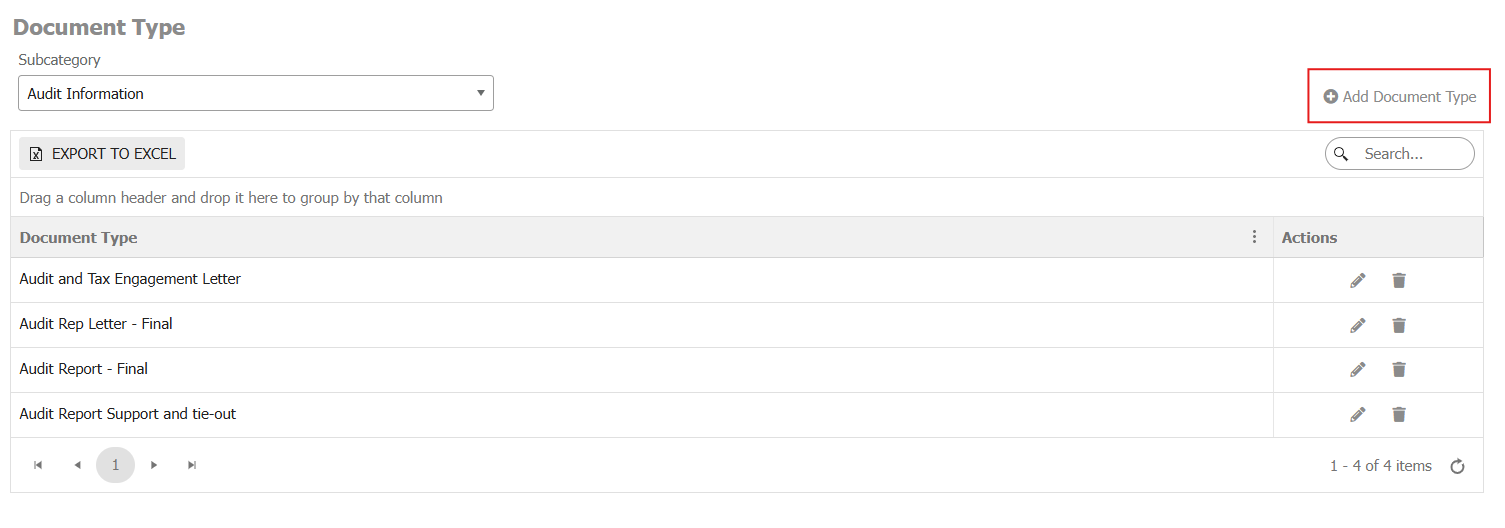
Like the above process, you can then create specific document types unique to that subcategory by creating new document types in the Document Types grid at the base of the page.
For example, you could create an accounting category with an audit information subcategory and then within that audit information subcategory have an audit engagement letter document type.
Once created, and using the above example, you could then upload an engagement letter to an Asset Files page and then mark it as an accounting file, with a subcategory of audit information, and then as an engagement letter specifically.