
Data Upload
The Data Upload section allows users to upload financial and tenancy data into the application. It consists of two main tabs: the Data Upload tab, where data is imported and status updates are displayed, and the Templates tab, which houses the templates used for data uploads.
Templates Tab
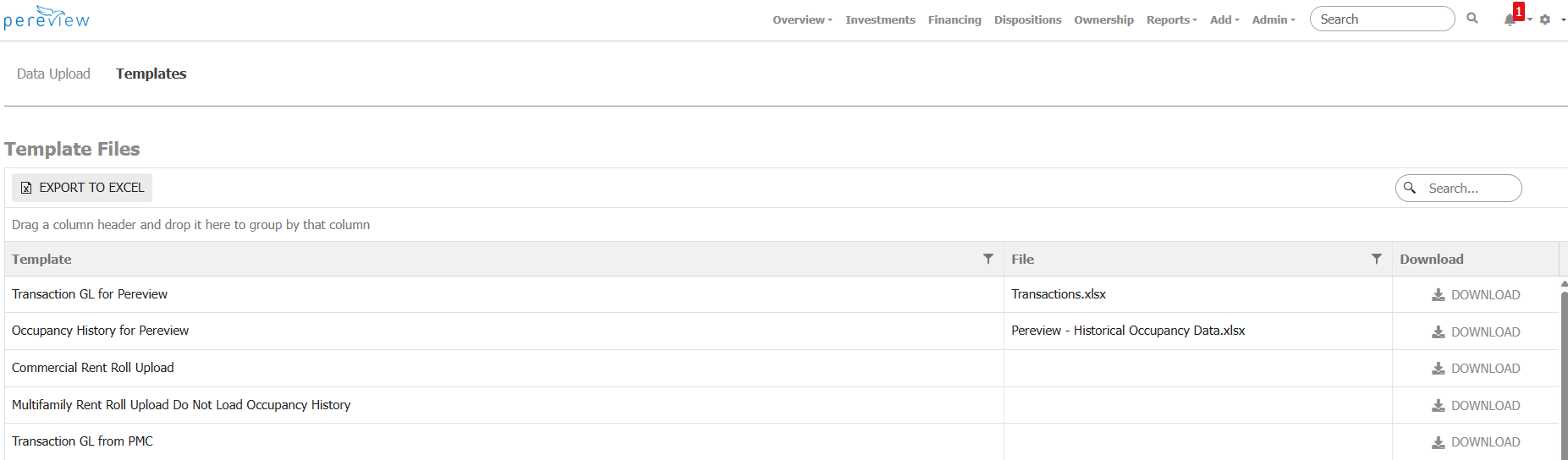
The Template Files grid displays a list of all available templates along with a link to download the template. Once downloaded, the template can be populated with the relevant financial or tenancy data.
Important: It is strongly recommended to not change column headers or order, alter the format, or rename tabs within the template as this can cause the file to not upload successfully.
Data Upload Tab
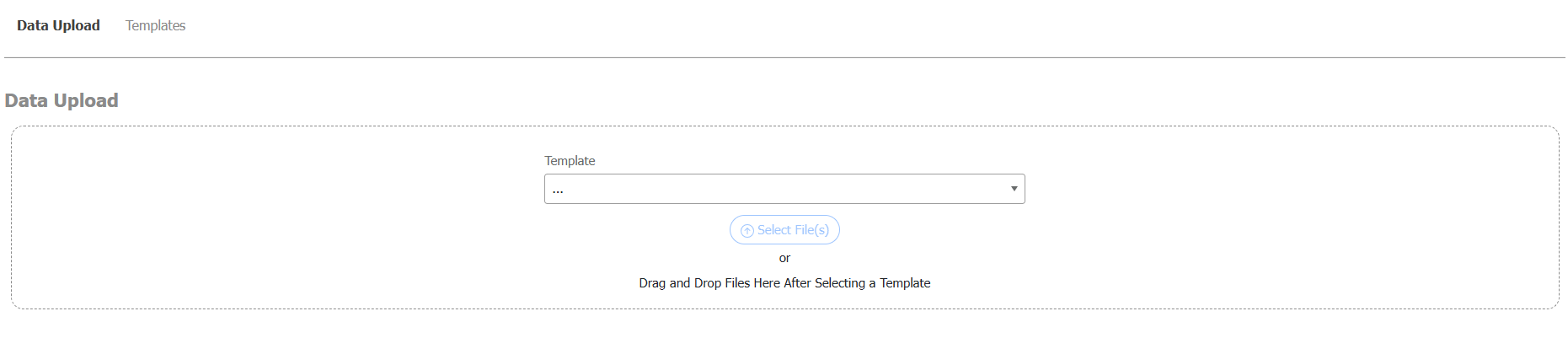
On the Data Upload tab, you can upload a populated template by selecting the appropriate template type from the dropdown in the Data Upload box and using the Select File option or by dragging and dropping the file. Once completed, you will be prompted with an option to save and continue. The file will then start to be processed by Pereview.
Once completed, the upload will appear as a new line item within the history grid on the bottom portion of the page. There, along with a complete history of prior uploads, you can view the status of the upload along with its associated details.
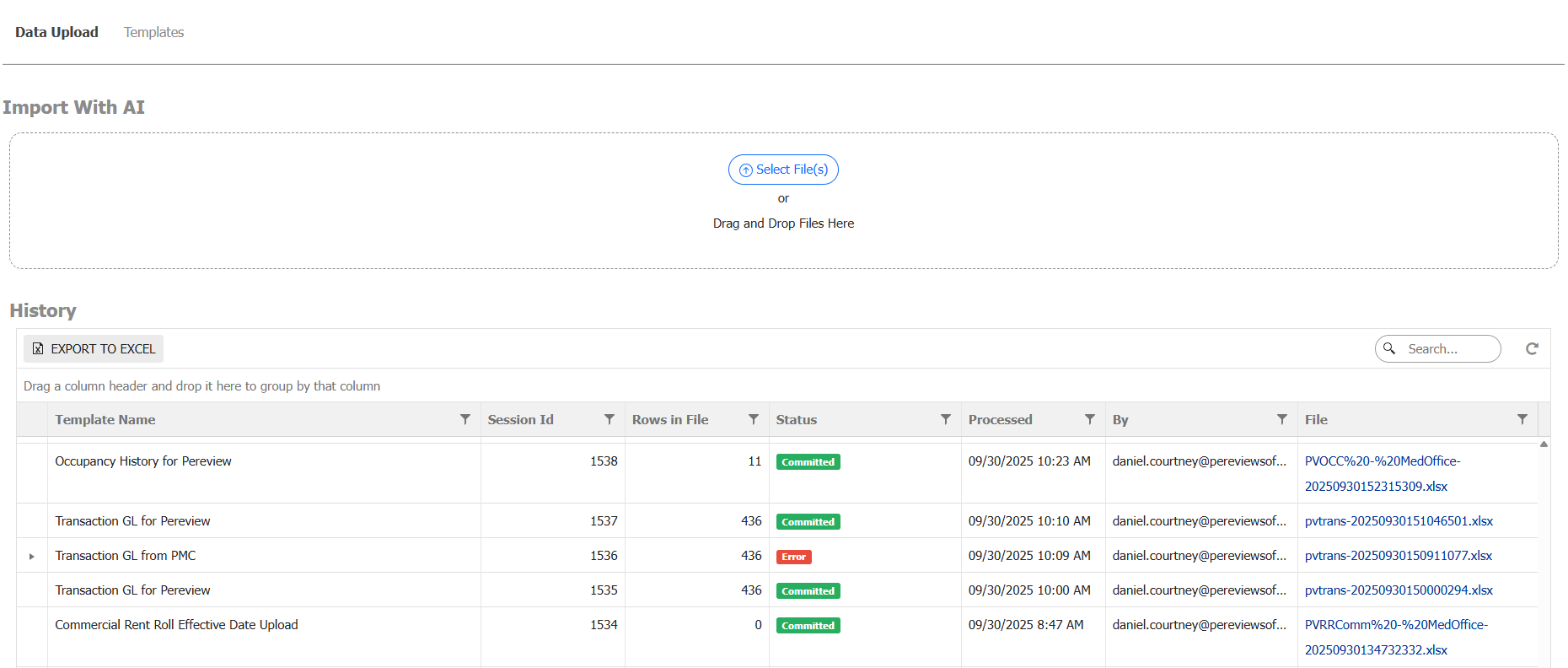
This is also where you can see when a file was uploaded and who it was uploaded by. Additionally, a link to the file itself is available should you ever need to go back and review the file.
While a file is processing, the status of the upload will change as it advances through the progress. Refresh the page periodically to review any status updates.
Below are the various statuses as a file advances through the upload process:
- Staged: Uploaded file is currently in process of being uploaded.
- Queued: File is placed in the upload queue and will soon be ready for upload.
- Committed: Uploaded file is valid and has been uploaded to Pereview successfully.
- Error: File has generated an error. Expand the session ID by clicking the Expand triangle icon on the far left to view the error message details.
- Processed: File has been uploaded by an Operating Partner via the Variance Portal and is awaiting approval.
- Rejected: File submitted through the Variance Portal by an Operating Partner has been rejected.
- Submitted: File has been submitted through the Variance Portal by an Operating Partner and is pending approval.